Your training week does not have to fit a fixed template
Do you train your whole body each time? A single reusable session may be enough. If you alternate upper and lower body or want to prepare several different weeks, create the training days to match. You can make as many plans of your own as you need.
Each week can be different. Add or move days, or duplicate a day and edit the copy, so you do not have to build similar sessions from scratch. You can also choose a ready-made workout plan and adapt it to your preferences.
How to create a workout or a plan
Open your plans and tap New Plan. Choose Single workout for a reusable workout or Plan for several days or weeks. You can expand it later. Use Import from file to add a plan file you have received.
Prepare your exercises before you get to the gym
For an upper-body and a lower-body day, you can prepare each day’s exercises, weights, reps and rest periods. The targets appear at the exercise during your next workout, so you do not have to put the session together at the gym.
If an exercise is missing from the selection, create it yourself and assign its muscles. Whether you train with weights, your bodyweight, time or distance, the targets match the exercise type. You can also prepare warm-up sets and drop sets with reduced weight. Choose the AMRAP set type for a set with as many reps as possible.
Open Muscles to see which muscle groups your planned sets cover. The muscle map helps you track the distribution. If you want your targets to progress, add a suitable progression rule to the exercise too.
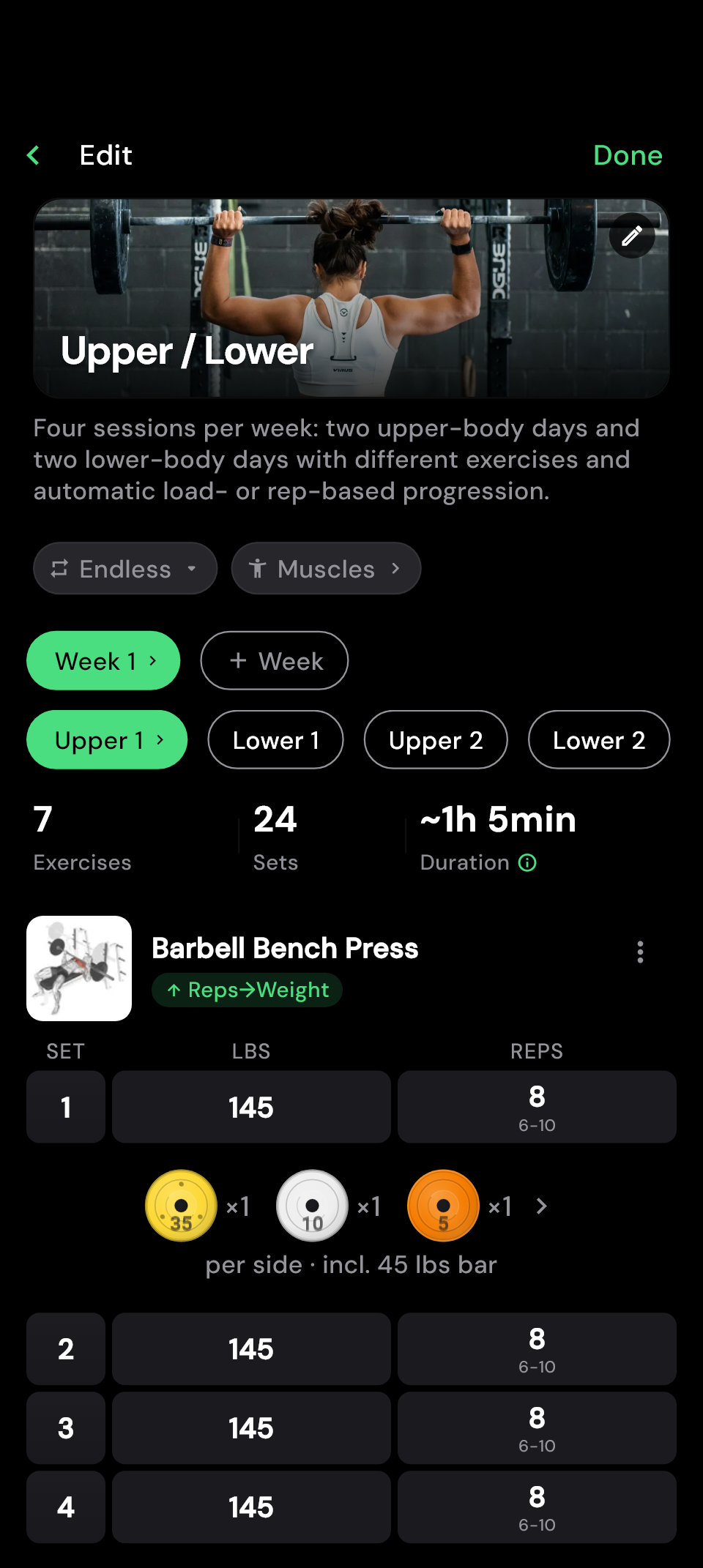
How to build your first training day
- Tap the header in the editor to name your plan.
- Choose a day. Tap the active day tab again to open its options. Name it "Upper body", for example.
- Add exercises and sets. Enter their targets and choose your rest periods.
- Move to the next day and prepare its exercises. You can duplicate similar days through the day options.
 Enlarge image
 Your notes are there when you train the exercise
The right machine seat height, your grip width or a reminder for your lighter training day: save these details at the exercise. You do not have to remember them or look for them in another app.
- For the exercise in a particular session: Add a note such as “Pause at the bottom today”. This workout note belongs to the exercise in that workout and appears directly at the exercise while you train. You can use different reminders on different days.
- For the exercise in every session: Save your preferred seat position, for example, as a global exercise note. It stays available for that exercise across your different workouts. During training, you can find it in the exercise menu.
You choose whether a note belongs to a particular training day or should stay with that exercise wherever you use it. Add notes while preparing your plan and, if needed, during your workout.
Have your supersets ready to go
Want to alternate biceps curls and triceps pushdowns, for example? Group them into a Superset in your plan. During your workout, hitPR takes you to the next exercise in the group after you tick off a set. The order of exercises is already part of your routine.
You can group more than two exercises and choose their order. No rest timer starts between exercises within a round; the rest comes at the end of the round. You do not need to skip the timer at every exercise.
How to set up a superset
In the plan editor, open the first exercise's menu and choose Superset. Select one or more partner exercises, arrange them in the order you want and apply the selection. Set the rest after a full round on the last exercise in the group. Exercises with distance and time cannot be selected as partners.
You can also create a superset during your workout. When you finish, the plan update lets you decide whether to keep the change for future sessions.
Share an exercise's progression across several days
If your week includes the bench press several times and you want to work towards the same targets each time, link those training days with Progress together. When you progress on one day, you do not have to update the target on the other days yourself.
For example, two days each have three sets of bench press planned for eight reps at 65 kg. You link the days and set linear progression with a 2.5 kg increment. Reach every target on one day and finish the workout, and the plan then shows 67.5 kg on both days. Each completed session still remains a separate entry in your history.
More than the weight increments are shared: set targets, rest periods and progression settings apply across the linked days too. Change these values and the change applies to every selected day. This is useful when you train the same exercise by the same rules throughout the week.
If you deliberately train the same exercise on a heavy day and a light day, keep those days separate. You choose which days share their targets, including days across several weeks of your plan.
How to link the days you want
- Add the same exercise to at least two days in your plan.
- Tap the exercise in the plan editor and open Progress together. This option appears once the exercise occurs more than once in your plan.
- Select the days that should share their targets.
- If their settings differ, choose which version to use under Setting for all days. Check it before confirming: it replaces the previously different targets with shared ones.
- Confirm the link. You can separate days again here later; they keep their last shared targets.
What happens to shared targets if I train lighter today?
A lower training weight can also become the new target on the linked days once you finish. Check the next targets after a deliberately lighter session. If you regularly want to train with different targets, keep those days separate.
Will the workout fit the time you have?
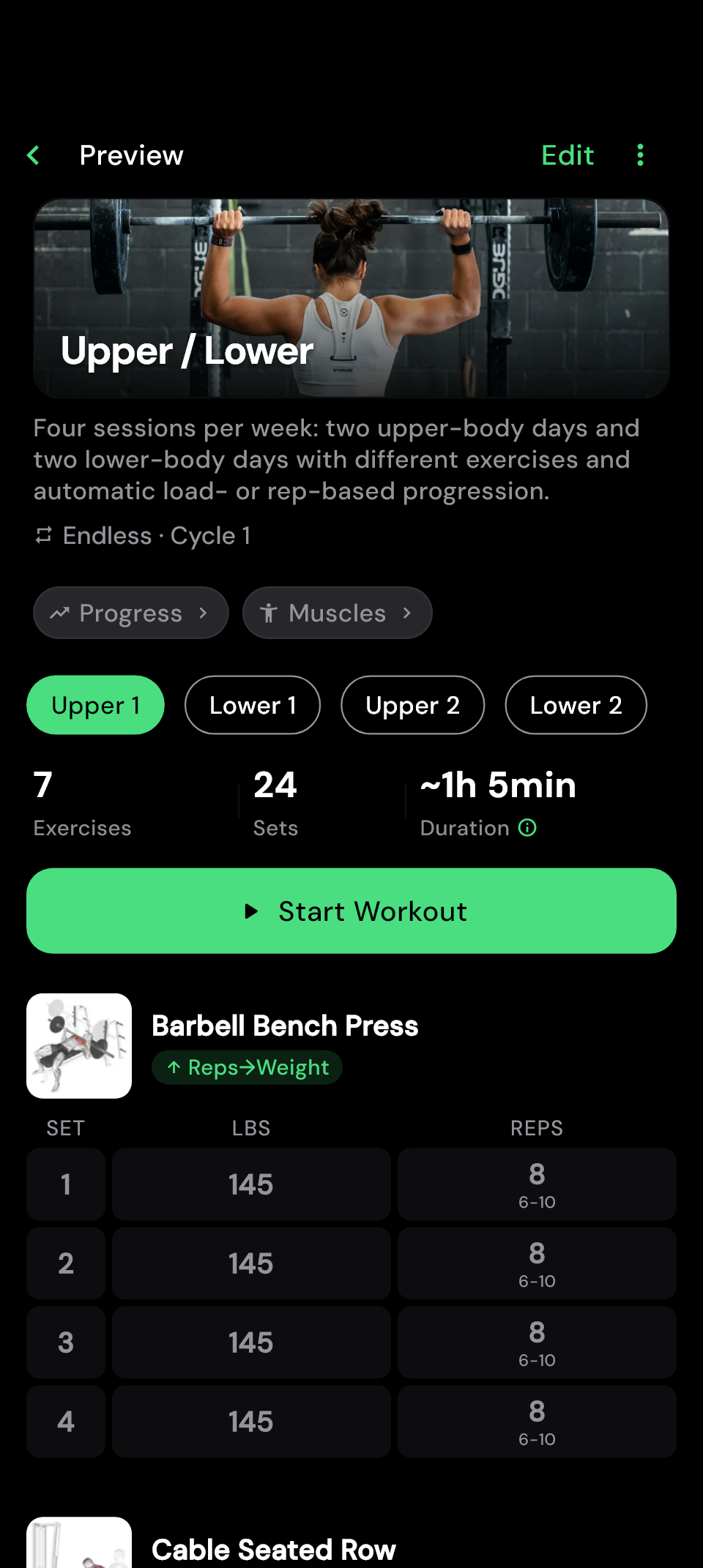
The preview shows an estimated workout duration alongside your exercises and set targets. Before starting, you can judge how well the session fits into your day. The estimate also helps you keep track of time when editing your plan.
Broadly, the duration combines the time to perform your planned sets, your chosen rest periods, changes between exercises and some preparation time. hitPR also accounts for supersets: moving straight to a partner exercise is calculated differently from resting between separate exercises.
Tap Duration to see the breakdown. If you have completed this training day before, the plan preview also shows an average of your recent sessions for comparison. This helps you judge how the calculated duration compares with your own training pace. That history does not change the estimate itself.
Allow some extra time for waiting for equipment and your personal pace. The preview does not include stretching, a cooldown or warm-up sets added automatically during the workout. Warm-up sets already saved in your plan are included.
 Enlarge image
 Use your plan for as long as it suits you
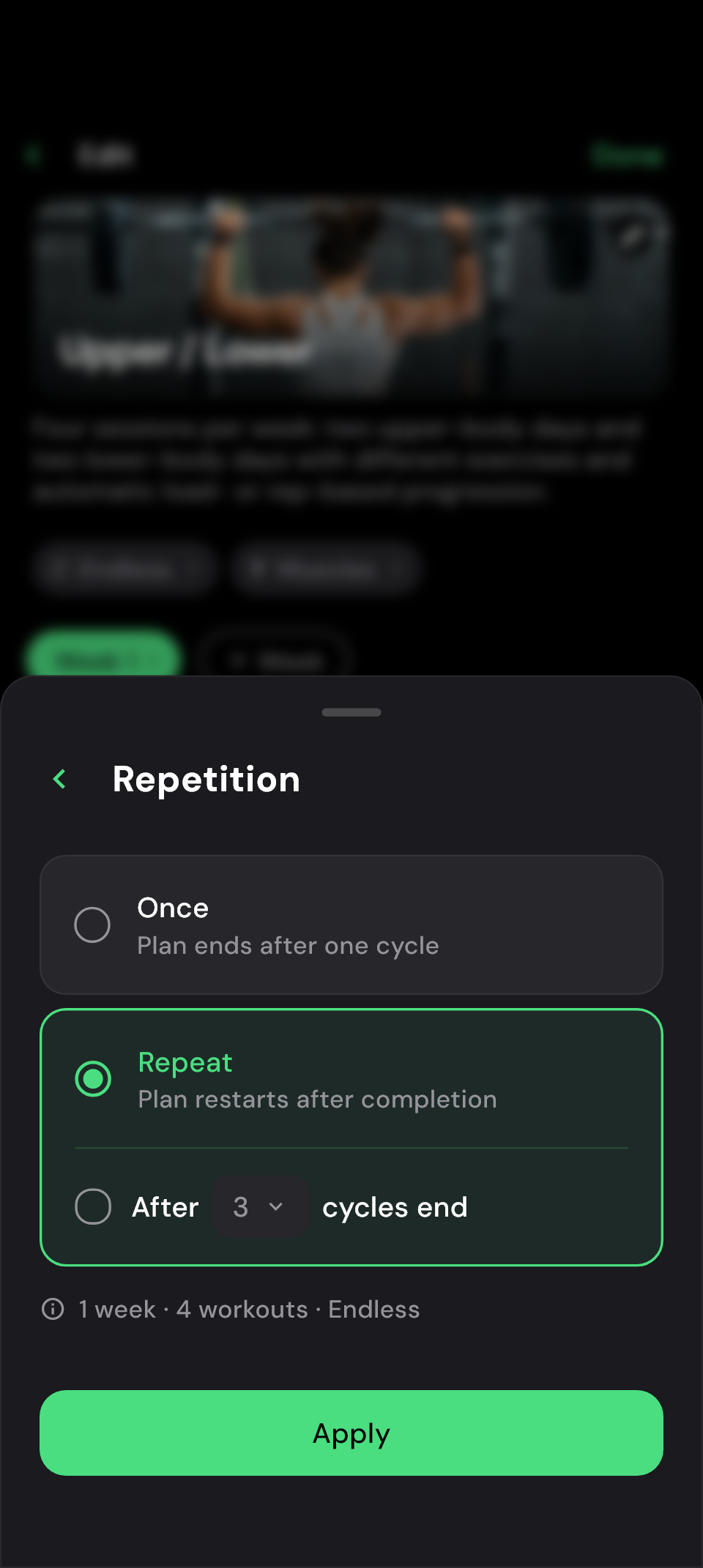
If you repeat a routine regularly, you may want to start again after the final workout. Choose Endless for that. If you want to complete a training block once or a set number of times, choose that under Repetition.
hitPR keeps track of the training days you have completed and suggests the first unfinished day. You can still choose a different day if it suits you better today. Once you have completed every day in your plan, the round is complete.
Where do I change how often the plan repeats?
In the plan editor, the setting is below the header. Choose to run the plan once, repeat it a limited number of times or keep it endless. Your sessions remain available even after the final planned round.
 Enlarge image
 Keep today's useful changes for next time
Equipment is taken, you add a set or you want to change the exercise order. Your plan leaves room for these adjustments. When you finish, Update plan? shows the changes you can keep for future sessions.
Apply the list and you do not need to edit the plan manually afterwards. If the change is just for today, choose Don’t apply. The workout you actually completed stays in your history. The exercise replacement guide explains how to find a suitable alternative.
What should I check before applying changes?
Your decision applies to the whole list of changes shown. For exercises that progress together, applied set targets also carry over to the linked days. A replacement exercise you save, however, progresses independently from then on.
Your training weights and automatic progression are processed when you finish, independently of this prompt. The choice therefore does not cover every value in your plan. Automatically added warm-up sets remain limited to today's session.
Frequently asked questions
Can I create and edit my plans for free?
Yes. Your own plans, supersets and automatic progression are included for free.
Does every week need the same number of days?
No. Weeks start with the same structure when you create them. In the editor, you can then add, duplicate, move or remove their days independently.
Can I turn a free workout into a template?
Yes. When you finish a workout without a plan, hitPR offers to save it as a template if you have entered at least one exercise.
Will resetting plan progress delete my history?
No. It resets the current round and its completion marks. Workouts already saved stay in your history.