Get suggested steps up to your training weight
If you want to begin with lighter sets and gradually add weight, you can get a warm-up sequence during your workout. hitPR uses the weight of your first working set — the first set after your warm-up — to suggest weights and reps.
Check that you have entered today’s training weight first. Then add the suggestions and edit any set you need to. Your working sets stay in place.
How to add warm-up sets
- Start your workout and expand the exercise.
- Check the weight of the first working set.
- Tap Warm-up below the sets.
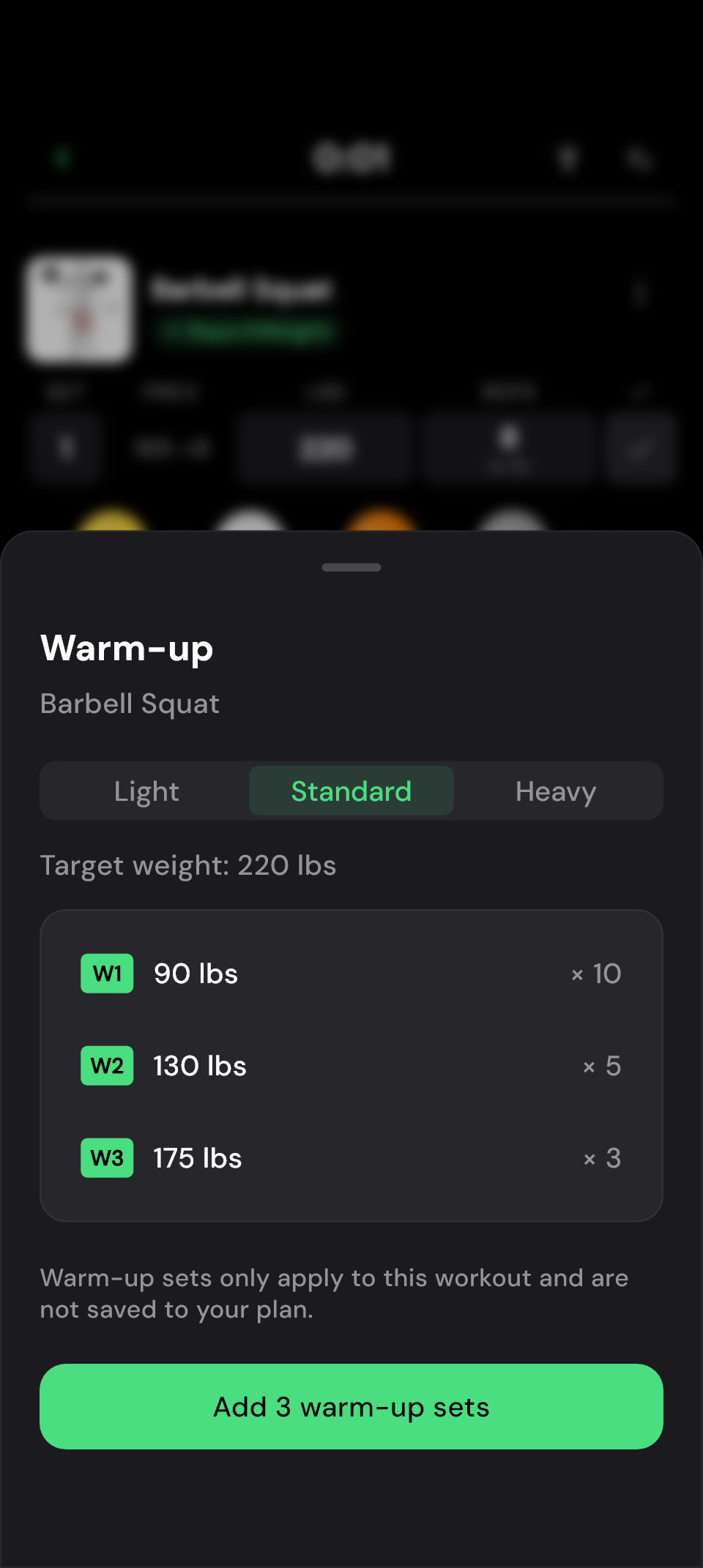
- Choose a level, check the suggestions and add them.
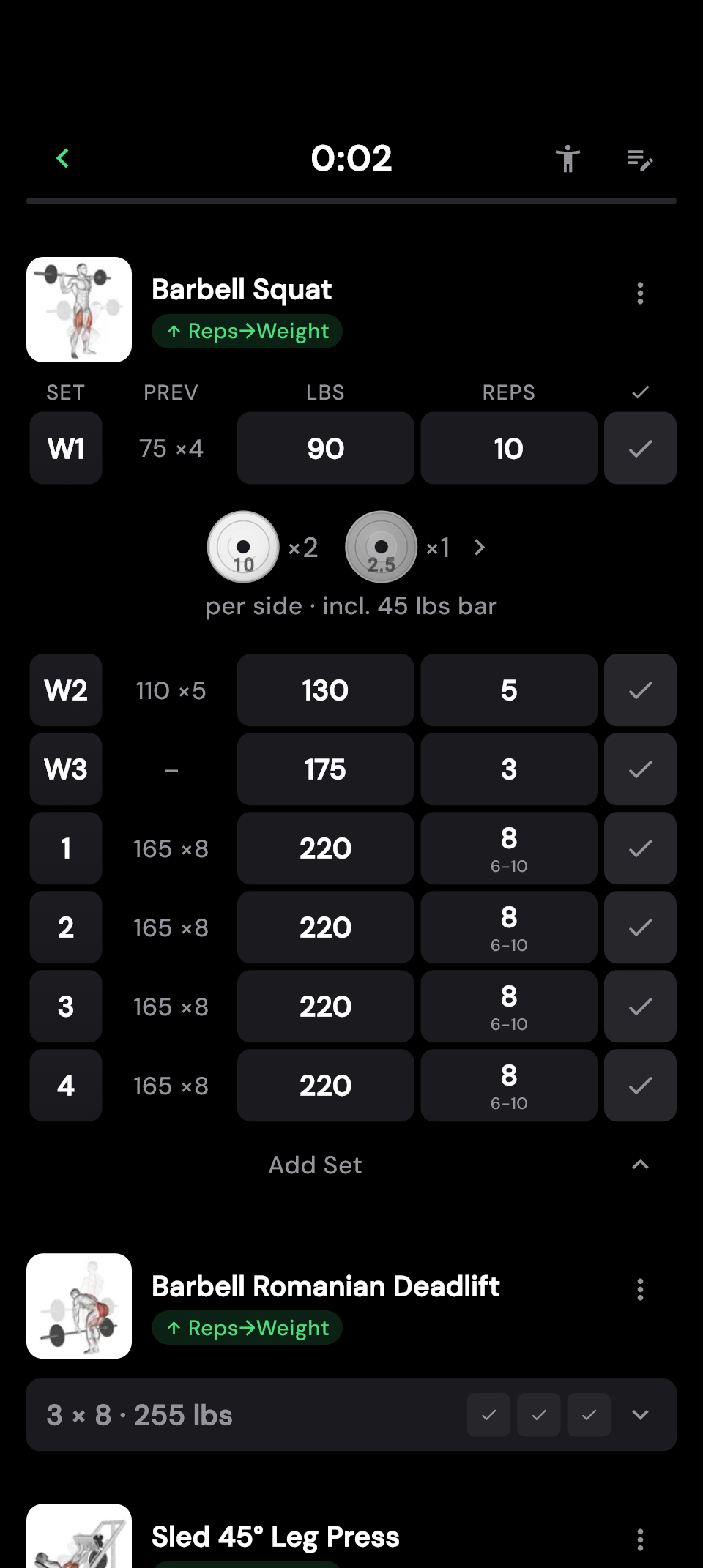
The warm-up sets now appear before your working sets. Tick them off as you complete them.
How much warming up do you want to do?
Choose between Light, Standard and Heavy. The levels differ in the number of steps suggested and how close the final warm-up set gets to your training weight. You can see the full sequence before adding it.
For example, with Standard and a planned working weight of 220 lb, hitPR suggests 90 lb for ten reps, 130 lb for five and 175 lb for three. Treat this as a starting point you can adjust to your exercise and today’s workout.
Already warmed up from earlier exercises? Check whether you still need the suggested amount of warming up. Check the available weights too: if your machine has different increments or the empty bar weighs more than a suggestion, edit that set after adding it.
 Enlarge image
  Enlarge image
 Adjust your warm-up to today's workout
As your training weight changes, your warm-up may change too. Get a fresh sequence next time you train. Today’s completed warm-up sets stay in your history, but are not added to your plan as fixed targets.
If you change your working weight after adding the warm-up, adjust the warm-up sets too; the sequence you added otherwise stays unchanged. If you want to use the same warm-up sets every time, you can save them in the plan editor instead.
Why is "Warm-up" not showing?
The suggestions are for exercises where you record weight and reps. Add them before ticking off your first set. Your planned working weight needs to be entered already.
If the exercise already has warm-up sets, edit those directly. These suggestions are not available for bodyweight-only exercises or exercises measured in time or distance.
Frequently asked questions
Can I change the weights and reps myself?
Yes. Once added, warm-up sets can be edited just like other sets. The suggestions give you a starting point; adjust them to your available weights and your workout.
Do I need to look through every level each time?
No. hitPR remembers your last level for the next selection. You can choose another one at any time before adding the sets.
Do warm-up sets count towards progression or the muscle map?
Automatic progression assesses your working sets. Warm-up sets are also excluded from the muscle map. Still tick them off during your workout so the exercise is fully completed.